Waves SuperRack
This integration allows Waves SuperRack to follow the selected channel in Mixing Station, as well as recall matching snapshots
Requirements
- Mixing Station >=3.2.0
- Waves SuperRack (Performer or SoundGrid) >= V15
- IPv6 network (link local only)
- Mixing Station SuperRack license or subscription (can be tested without)
Mixing Station and Waves SuperRack must be running on devices which have IPv6 enabled. This is required by the ProLink protocol.
Setup
- In Mixing Stations main menu press
SuperRackand press the On/Off button to enable the integration.
- In SuperRack go to Setup
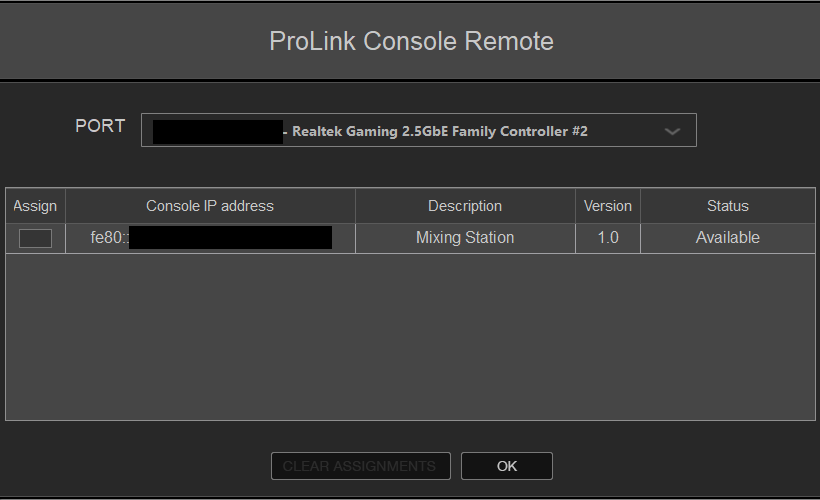
- Add a new Controller "Pro Link Console Remote"
- Press the gear icon to open the ProLink configuration.
You should see a "Mixing Station" entry. Press "Assign" on the left side.
- Mixing Station should now show "SuperRack connected".
Limitations
When SuperRack is controlled by a ProLink client it will automatically lock the following UI elements in SuperRack: - Snapshot control - Tap delay
Those controls will be added to mixing station in a future update so you will still be able to save snapshots without having to turn off the SuperRack integration in Mixing Station first.
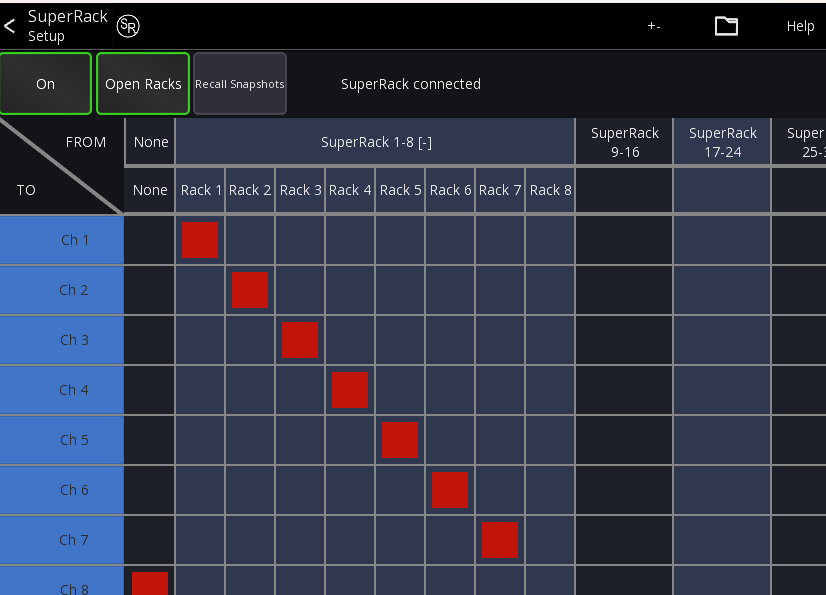
Open Racks
This option opens a rack in SuperRack whenever the channel selection in Mixing Station changes.
In the selection grid you can select which mixer channel corresponds to which rack.
To make SuperRack follow the selection on your mixer:
1. Go into the app settings
2. In the Mixer section enable "Follow ch select" (if supported by your desk)
3. If this option isn't available, use "Ch select follow solo" and use the PAFL/solo button on your desk
Recall Snapshot
When enabled a SuperRack snapshot will be recalled every time the "current scene" value changes (aka you recall a scene on your desk).
In addition, the currently selected scene will be highlighted in SuperRack as well.
The mapping for this is always 1:1, meaning when you recall Scene 5, it will also recall Snapshot 5 in SuperRack.
Common Issues
Only link-local IPv6 address allowed
This error appears if your network interface has more than one ipv6 address. This usually happens if your network supports IPv6 natively (for example if your router hands out IPv6 prefixes).
The SuperRack protocol however doesn't work in such situations (Waves is aware of this, but it's not seen as a bug...).
To prevent this from happening, make sure to use a network that is NOT connected to the internet.
In case you can't change the network you're using then there are other workarounds: You can disable router discovery on your system. Note however that this will disable IPv6 communication with the outside world.
For Windows
- Open a powershell as admin
- List all interfaces to find the correct name
Get-NetIPInterface -AddressFamily IPv6 - To disable router discovery:
Set-NetIPInterface -InterfaceIndex <ifIndex number> -AddressFamily IPv6 -RouterDiscovery "Disabled"
To revert simply pass Enabled instead of Disabled at the end of the command
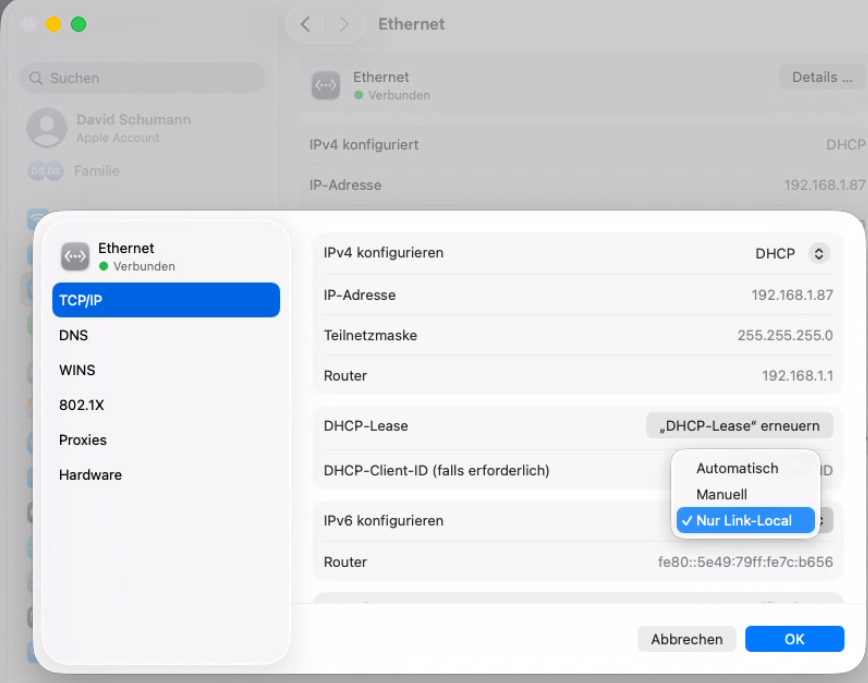
For macOS
- Open the system settings
- Navigate to "Network"
- Click on your network interface
- Press
Details - Press
IPC/IP - Change the IPv6 configuration to
Local-Link Only